How to Design a Pumpkin Sticker in Cricut Design Space
I have a confession. Some of my favorite sticker designs aren't drawn at all. They're made from circles, squares, and triangles!
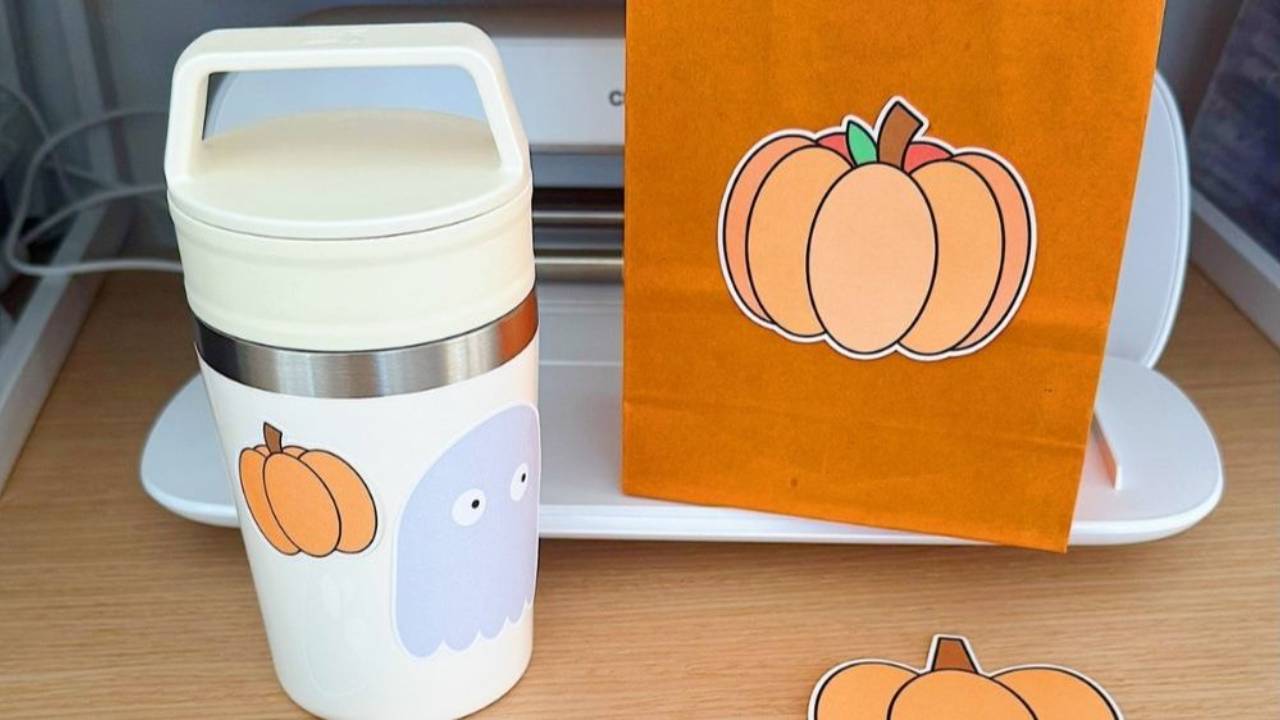
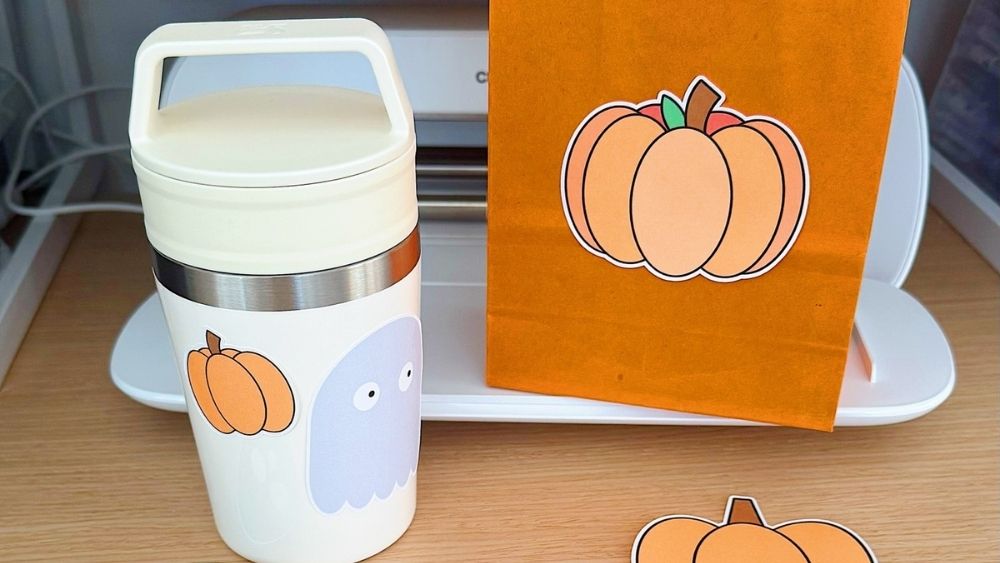
Designing with simple shapes is one of the easiest ways to make your own stickers in Cricut Design Space, even if you've never drawn a thing in your life. In this tutorial, I'll show you how to turn a few basic shapes into four cute pumpkins, starting with a super simple one and finishing with a shaded pumpkin with a curly stalk and a leaf.
Using Silhouette Studio? Stay with me. The process is almost the same, and I've added the Silhouette steps at the end.
🎃 At a glance
- You'll make: 4 pumpkin designs, each building on the one before
- Shapes you need: circles, squares, and triangles
- Tools you'll use: Offset, Group, Duplicate, Combine (Subtract, Weld), Slice, Arrange, Align, Flip and Flatten
- Skill level: beginner-friendly, with no drawing skills needed
- Works in: Cricut Design Space and Silhouette Studio
Why design stickers with simple shapes?
- You don't need to draw. If you can click on a circle, you can make a pumpkin.
- Your stickers are 100% yours. No clipart licences to worry about.
- You learn the tools that matter. Offset, Subtract, Weld, and Flatten are the same tools you'll use for almost every sticker you make.
- It's relaxing! There's something so calming about moving shapes around until it looks just right.
Pumpkin 1: The basic pumpkin
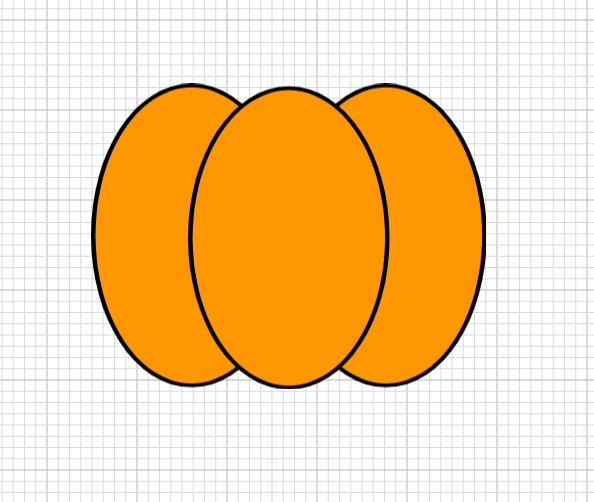
Every pumpkin in this tutorial starts here, so take your time with this one.
- Go to Shapes, choose the circle, and change the color to orange.
- Unlock the size and stretch the circle into an oval.
- With the oval selected, go to Offset. Set the distance to 0.05 and change the offset color to black.
- Select the oval and its offset, then right-click and choose Group. This just makes it easier to move around.
- Right-click and Duplicate (or press Ctrl + D / Cmd + D). Place the copy next to the first oval so they overlap.
- Duplicate again and place this one in the middle, on top of the other two.
- Select all three and click Flatten.
And there's your first pumpkin! Simple, cute, and ready to print and cut.
Pumpkin 2: Add a simple stalk
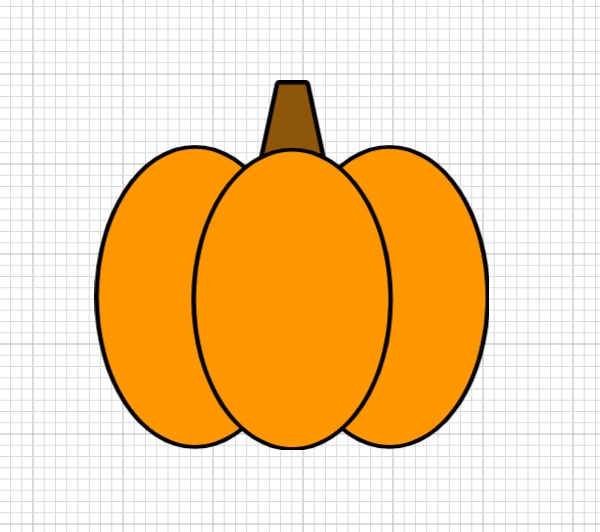
A stalk instantly makes your shape look like a pumpkin. Here's the easiest way to make one.
- Add a triangle from Shapes and color it brown. Make it a little taller.
- Add a square and place it over the top point of the triangle.
- Select the square and the triangle, then go to Combine and choose Subtract. The square chops off the point.
- Change the height and width of your stalk so it fits your pumpkin.
- Add an Offset to the stalk with the same 0.05 distance, and make it black.
- Select the stalk and its offset and move it into place on top of your pumpkin.
- Right-click and go to Arrange, then Send to Back, so the stalk sits behind the pumpkin.
- Select everything and click Flatten.
Mim's tip: The black offset makes it look like there's an outline around your whole design, a bit like a hand-drawn illustration. You don't have to add one, but I love how it makes the pieces look finished and connected.
Pumpkin 3: A curvy stalk and a 3D look
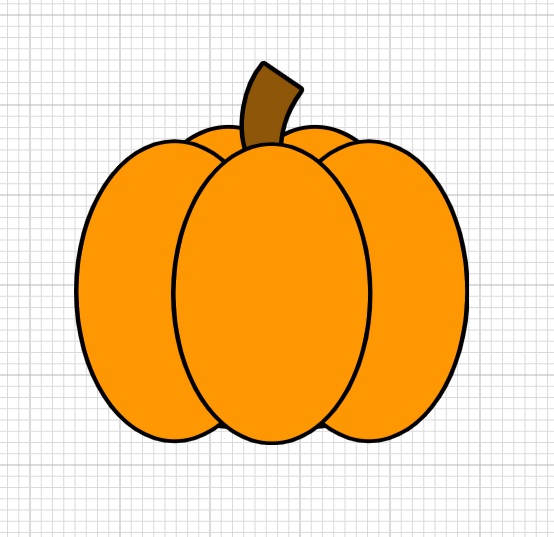
Now let's make the stalk a bit more realistic and give the pumpkin some depth.
Make the curvy stalk
- Add a new brown triangle. Make it taller and wider than before, so you've got space to work with.
- Add a circle, stretch it into an oval, and rotate it slightly.
- Place the oval over the left side of the triangle. This is the curve you'll cut out. Play with the angle and size until you like the curve.
- Duplicate the oval and set the copy aside for now.
- Select the first oval and the triangle, then go to Combine and Subtract. That's your first curve.
- Place the second oval on the other side, making sure it covers the right-hand edge of the stalk.
- Select both and click Slice. Delete the pieces you don't want, keeping only your curved stalk.
- Add a square, rotate it, and place it over the top of the stalk at an angle.
- Select the square and the stalk and use Combine, Subtract to chop the top off at an angle.
- Resize your stalk and add the same black 0.05 offset.
Swap the stalk and add depth
- Select Pumpkin 2 and click Unflatten.
- Delete the old stalk and put your new curvy stalk in its place.
- Group the new stalk and its offset, then Arrange, Send to Back.
- For the 3D effect, Duplicate one of the pumpkin segments (an oval with its offset) and place it behind the pumpkin, peeking out at the top.
- Duplicate it again and place it next to the first one.
- Right-click each one and choose Arrange, Send to Back.
- Move them down until you're happy with how they look.
- Select everything and Flatten.
Want to watch me design these pumpkins step by step?
The full video tutorial is waiting for you inside Secret Sticker Society, along with 100+ more sticker-making tutorials and new templates every month.
Join Secret Sticker Society →Pumpkin 4: Shading, extra segments and a leaf
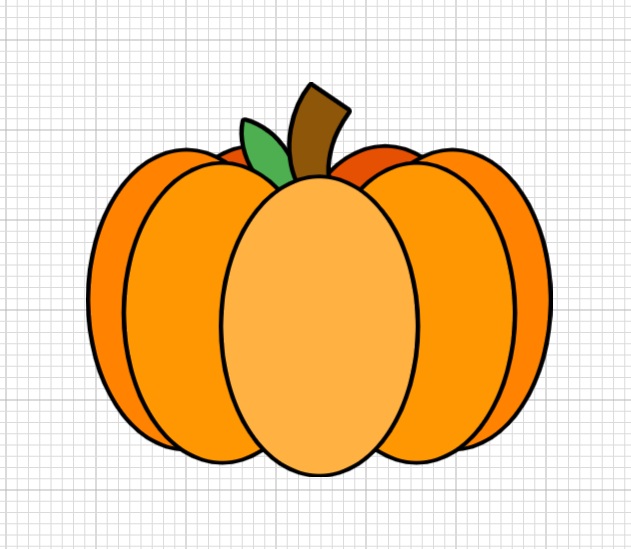
This is my favorite! A few different shades of orange give it a lovely gradient effect, and a little leaf makes it feel finished.
Add shading
- Select Pumpkin 3 and click Unflatten.
- To recolor one segment, either Ungroup it, or click the drop-down on that group in the Layers panel and select only the orange oval (not the black offset).
- Change the middle segment to a lighter orange. To find the right shade, click the color, open the Advanced color picker (the plus), and drag until you find the shade you want.
- Change the two segments at the back to a darker orange, again selecting only the orange and not the offset.
Add two more segments
- Bring the two side segments in a little toward the middle.
- Duplicate a segment and make it a slightly darker orange.
- Duplicate it again so you have one for each side.
- Arrange, Send to Back, then move them into place on the outer edges.
- Check the back segments are still right at the back. Play around until you love the shape of your pumpkin.
Make a leaf
- Add a circle and drag it out into a wide oval.
- Add a square (change its color so you can see what you're doing) and place it over the oval so it covers everything except a thin slice at the top.
- Select both and use Combine, Subtract. You'll be left with a curved, dome-shaped piece.
- Duplicate it, then Flip the copy vertically.
- Line the two pieces up, flat sides together. Select both and use Align, Center Horizontally.
- Make sure they're touching, with no gap. Then select both and use Combine, Weld.
- Color your leaf green, then resize and rotate it.
- Add the same black 0.05 offset, and Group the leaf and offset together.
- Place the leaf next to the stalk. Use Arrange, Send Backward until it sits where you like. It can go in front of the stalk or behind it.
- When you're completely finished, select everything and Flatten.
Don't skip this: Always Flatten your finished pumpkin before you click Make. Flattening turns all the pieces into one printable image, so Cricut prints it as a single sticker and cuts around the outside edge.
How to design the pumpkin in Silhouette Studio
If you design in Silhouette Studio, you'll use the same shapes and almost the same steps. The main difference is how you add the black outline.
Pumpkin segments
- Draw a circle, give it an orange fill color, and stretch it into an oval.
- To add the outline, open the Line Style panel, change the line color to black, and increase the thickness. I used a thickness of about 2.
- Duplicate and arrange your ovals into a pumpkin, just like in Cricut.
Leaf
- Draw a circle, stretch it into an oval, and place a square over the top so only a thin slice is showing.
- Select both and go to Object, Modify, Subtract.
- Duplicate the piece, flip it vertically, and match the two halves up.
- Select both, right-click and choose Weld. If you still see a red line across the middle, the pieces weren't touching. Move them together and try again.
- Change the color to green, then adjust the width, height and angle. Add the black outline in Line Style (thickness 2).
Stalk
- Choose the Draw a Polygon tool and set it to 3 points to make a triangle. Give it a brown fill.
- Make it narrower, then place a square over the top.
- Select both and go to Object, Modify, Subtract.
- Add a black line in Line Style with a thickness of 2.
Then put your pieces together to make whichever pumpkin you like best!
Pro tips for designing with shapes
- Group as you go. Grouping each shape with its offset keeps the outline from getting left behind when you move things.
- Select only the fill when you recolor. Use the drop-down in the Layers panel so you don't accidentally turn your black outline orange.
- Use a contrasting color while you work. Changing your square to a bright color makes it easier to see exactly what you're cutting away.
- Keep your offset the same on every piece. Using 0.05 throughout gives your design a neat, even outline.
- Save each pumpkin before you change it. Duplicate a finished pumpkin before you unflatten it, so you keep a copy of every version.
- Play! Try green or white pumpkins, add more segments, or give your leaf a different angle. There's no wrong answer.
Troubleshooting
Subtract cut away the wrong shape.
Subtract always removes the shape on top. Make sure your square or oval is in front of the stalk or circle before you subtract. If it isn't, use Arrange to bring it forward.
My leaf won't weld into one shape.
The two halves need to touch, with no gap at all. Zoom in, nudge them together (overlapping slightly is fine), then weld again.
My outline changed color when I recolored the pumpkin.
You selected the whole group. Undo, then open the group in the Layers panel and click only the orange shape.
My stalk is in front of the pumpkin.
Select the stalk and its offset, then use Arrange, Send to Back.
Cricut is cutting around every little piece.
You haven't flattened your design yet. Select every piece of your pumpkin and click Flatten.
I can't find Unflatten.
Select your flattened pumpkin, and Unflatten appears in the same place as Flatten at the bottom of the Layers panel.
Why crafters love designing their own stickers
Here's what a few Secret Sticker Society members told me they were most excited about when they joined:
"I'm most excited about all the ideas I'm shown and doing them myself."
Crystal, Secret Sticker Society member
"I joined to make stickers mostly for myself and my family. I need something to brighten and uplift my days."
Raewyn, Secret Sticker Society member
"I joined to create for myself and branch out into selling. Plus Mim makes amazing stickers templates."
Zara, Secret Sticker Society member
FAQs
Do I need to know how to draw to design stickers in Cricut?
Not at all. Every pumpkin in this tutorial is made from circles, squares and triangles that are already in Cricut Design Space.
How do I add a black outline in Cricut Design Space?
Select your shape, add an Offset with a small distance (I use 0.05), and change the offset color to black.
What's the difference between Subtract, Slice and Weld?
Subtract cuts the top shape out of the shape underneath. Slice cuts two shapes into separate pieces where they overlap. Weld joins touching or overlapping shapes into one shape.
Why do I need to flatten my pumpkin?
Flattening turns all your layers into one printable image, so Cricut prints it as a single sticker and only cuts around the outside.
Can I make these pumpkins in Silhouette Studio?
Yes. Use the same shapes, add outlines with the Line Style panel, and use Object, Modify, Subtract and Weld for the stalk and leaf.
What size should I make my pumpkin stickers?
Whatever size you need! Planner stickers are usually small, while stickers for gifts, bags or envelopes can be bigger. Design first, then resize at the end.
Watch the full tutorial inside Secret Sticker Society
Sometimes it's just easier to watch someone do it, right? Inside Secret Sticker Society, you can follow along with me on screen as I design all four pumpkins, pause whenever you need, and come back to it any time.
When you join, you'll get:
- This full video tutorial, plus 100+ more sticker-making tutorials in Cricut, Silhouette and Canva
- A brand-new sticker project every month, with seasonal themes to keep you inspired
- New editable templates every month, so you're never starting from a blank screen
- Printable written instructions to keep by your craft table
- A kind, supportive community of crafters to share your pumpkins with and ask questions
Make stickers you're proud of, all year round
Get instant access to the pumpkin video tutorial, 100+ more tutorials, and new templates every month inside Secret Sticker Society.
Get the full video tutorial in SSS →Over to you!
Which pumpkin will you make first? I'd love to see how you design yours. If you're a member, share it in our Secret Sticker Society community. Seeing your makes is my favorite part!
Happy sticker making,
Mim x
JOIN THE COMMUNITY:
Learn to make stickers from scratch that you're proud to use a share!