
Why Are My Stickers Not Printing Right? How to Fix Smudges, Blurs + Misalignment
There's nothing more frustrating than designing beautiful stickers, only to see them come out of your printer looking nothing like you imagined. Maybe the colors look off, the edges are fuzzy, or the ink is smearing every time you touch the page.
If you've been wondering "Why are my stickers not printing right?!", you're not alone. Many sticker makers (myself included!) have run into the same issues. The good news is most sticker printing issues have quick, fixable causes.
In this post, I've described common printing problems so you can find the one that looks like what's happening on your stickers—and get it sorted before you start cutting.
👉 My Sticker Ink is Smudging or Smearing
If your stickers still feel wet after printing—or the ink rubs off when you touch it—you're dealing with smudging.
Here are the common causes and their fixes:
Wrong paper type setting
If you're printing on glossy sticker paper but your printer is set to "Plain Paper", the ink may not be drying properly. Switch your printer settings to "Photo Paper" or "Specialty Paper".
Too much ink
Some printers lay down more ink than the paper can handle. Try lowering the print quality to "Standard" instead of "High".
Not enough drying time
Let your stickers dry for at least 10-15 minutes before cutting or handling. Wait even longer if you're using glossy paper.
Ink isn't bonding
If you're using an inkjet-compatible sticker paper in a laser printer (or vice versa), the ink won't adhere. Always match your paper to your printer type.
👉 My Stickers Look Blurry or Out of Focus
If your printed designs look like they're slightly "soft" or out of focus (even though they look crisp on your screen), there may be an issue with resolution or print quality.
Here are the common causes and their fixes:
Low-resolution images
Make sure your designs are at least 300 DPI before printing. Lower resolutions can look fine on screen but fuzzy in print.
Print quality setting is too low
In your printer settings, choose "Best" or "High" quality for sharper results (unless smudging is an issue).
Paper feed issues
If your printer is pulling the paper unevenly, the image can blur. Clean your printer rollers to ensure smooth feeding.
👉 My Colors Look Washed Out or Dull
If your stickers are coming out lighter, more faded, or with a strange color shift, it's usually a color calibration or paper compatibility problem.
Here are the common causes and their fixes:
Wrong paper type setting
Make sure you're using a setting that matches your sticker paper (matte, glossy, or photo).
Using the wrong side of the paper
Many sticker papers are coated on one side only. Make sure you're printing on the printable side, which is usually shinier or smoother.
Ink is running low
Low ink levels can produce faded prints, especially for vibrant colors. Replace or refill any cartridges that are running low.
Color profile mismatch
For the most accurate colors, you may need to calibrate your printer or adjust your design's color mode (use RGB for digital, CMYK for print).
👉 My Stickers Have Fuzzy or Feathered Edges
If the edges of your designs look like the ink is "bleeding" into the paper fibers, you're dealing with feathering.
Here are the common causes and their fixes:
Paper isn't coated for your printer type
Inkjet paper has a coating that keeps ink in place. If you're using the wrong paper, the ink can spread.
Excess ink flow
Your printer may be laying down too much ink for the paper to handle. Try lowering the print quality to "Standard" instead of "High".
Moisture in the paper
Humidity might be making the ink spread. Try to store your sticker paper in a dry place.
👉 My Stickers Are Printing Off-Center
If your designs are shifted up, down, or to one side, you may have a margin or alignment issue.
Here are the common causes and their fixes:
Incorrect page size
Make sure your design matches the paper size set in your printer settings (usually A4 or US Letter).
Printer feed skew
Straighten the paper in the feed tray and print one sheet at a time.
Template alignment
Double-check your cut file or template to ensure the designs are centered before printing.
👉 My Stickers Have Banding or Streaks
If you see horizontal lines across your stickers, especially in solid areas of color, you're seeing what's called "banding".
Here are the common causes and their fixes:
Dirty or clogged print heads
Run your printer's cleaning cycle to unclog the nozzles.
Ink is running low
Low ink levels can produce faded prints, especially for vibrant colors. Replace or refill any cartridges that are running low.
Draft mode is on
Make sure you're on a higher quality setting (not "Draft") so you can get more solid, even color coverage.
👉 My Stickers Don't Match the Colors on My Screen
If your printed colors are coming out warmer, cooler, or more muted than expected, it's often a display-to-print mismatch.
Here are the common causes and their fixes:
Screen brightness is too high
Your monitor might be displaying colors more vibrantly than they'll print. Try turning your screen brightness down to better align with the printed color. You can also choose brighter colors in your design to accommodate the more muted color in print.
No printer calibration
You can adjust your printer's color settings manually to match your screen colors more closely.
Wrong color mode
Designs for print should be in CMYK mode for the most accurate results (unless you've already calibrated for RGB printing).
👉 My Stickers are Jamming in the Printer
Paper jams are frustrating, and worse: they can damage both your printer and your paper.
Here are the common causes and their fixes:
Paper is too thick for the printer
Check your printer's maximum media thickness and compare it to your sticker paper's specs to make sure they're compatible.
Feeding too many sheets
Always print stickers one sheet at a time, making sure each sheet is straightened in the feed tray.
Paper is warped
Your paper may be curled or bent, potentially due to storage practices. This makes the paper more likely to jam. Try to store your paper flat in a cool, dry place.
Want a Complete Step-by-Step Guide to Making Stickers?
Printing is just one piece of the puzzle when it comes to making beautiful, professional stickers at home. My course Sticker Making 101 walks you through the entire process.
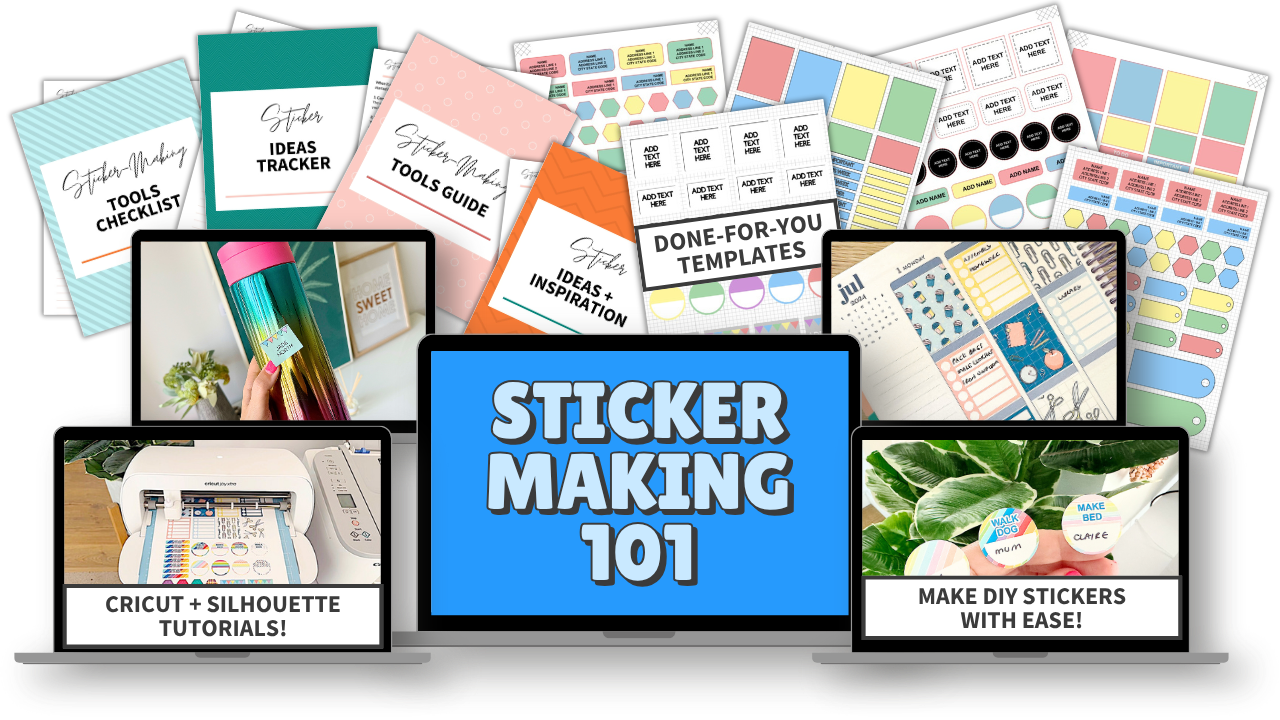
You'll become confident at every stage of sticker-making, including:
- Designing your stickers (even if you've never used design software before)
- Choosing the right paper, tools, and supplies
- Printing with crisp, vibrant colors (and no smudges or blurs)
- Cutting your stickers perfectly with a Cricut or Silhouette, or by hand
- Creating sheets that look and feel shop-quality, whether you're making them for yourself or to sell
By the end, you'll have a repeatable system for going from blank page to fully finished stickers you can't wait to use or share.
Click here to join Sticker Making 101 today!
Final Thoughts
Printing issues can be frustrating, but they don't have to stop you from creating stickers you love. By understanding what's causing the problem, you can fix it quickly and prevent it in the future.
Once your printing process is smooth, sticker making becomes so much more enjoyable and that's exactly how it should be.
JOIN THE COMMUNITY:
Learn to make stickers from scratch that you're proud to use a share!