
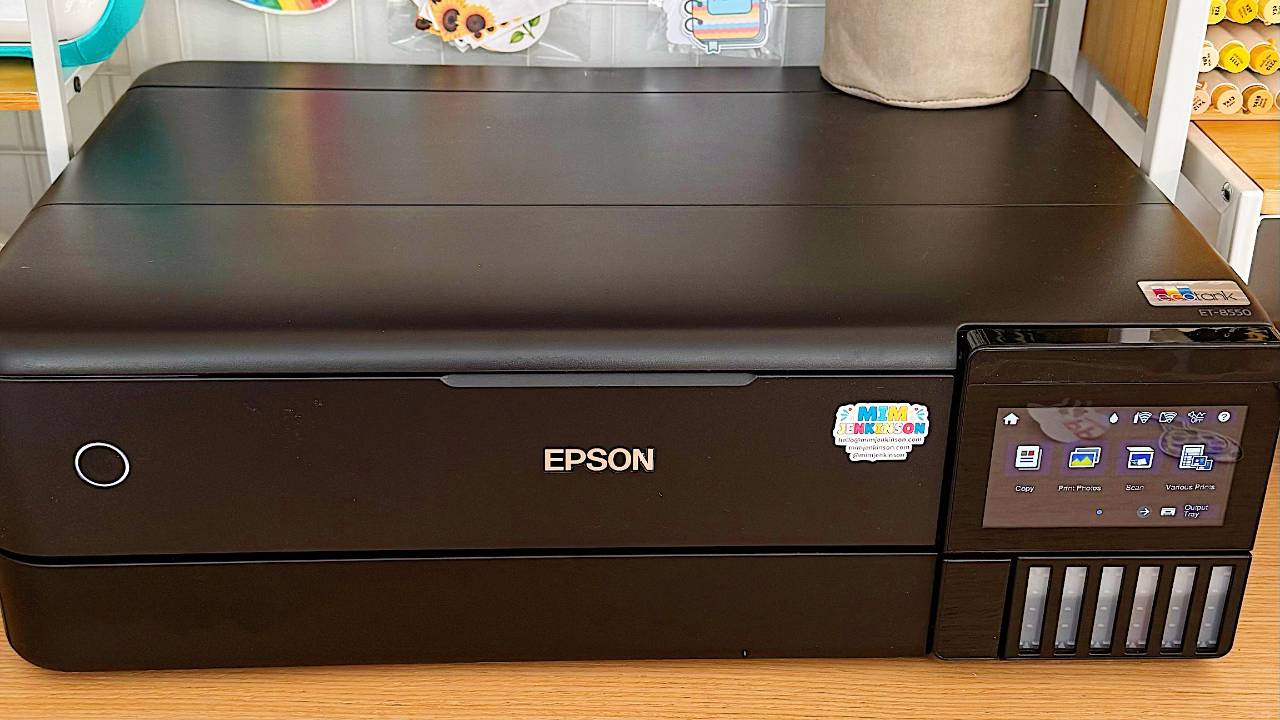
The Best Printer for Making Stickers at Home (What I Actually Use)
"What printer do you use?"
It's one of the questions I get asked most, and I completely understand why. You can have the best cutting machine, the prettiest designs, and lovely sticker paper, but if your printer isn't up to the job, your stickers won't look the way you imagined.
So in this post, I'm sharing the printers I've actually used to make stickers at home, from my very first budget printer to the one I use every day now, plus what to look for if you're choosing one for yourself.
Do you need a special printer to make stickers?
No, and this surprises so many crafters! You don't need a special sticker printer or a professional printer to make beautiful stickers at home. A regular color inkjet or laser printer works perfectly with print then cut on a Cricut or Silhouette.
There's just one golden rule: buy sticker paper made for your type of printer. Most home sticker paper is made for inkjet printers, so if you have a laser printer, check the pack before you buy. If you're not sure which paper to choose, here's my guide to the different types of sticker paper.
The printer I started with: Canon Pixma
When I first started making stickers, I used a Canon Pixma. It was a regular color inkjet printer that cost under $100, and honestly? It did a great job. My model has been replaced with newer ones.
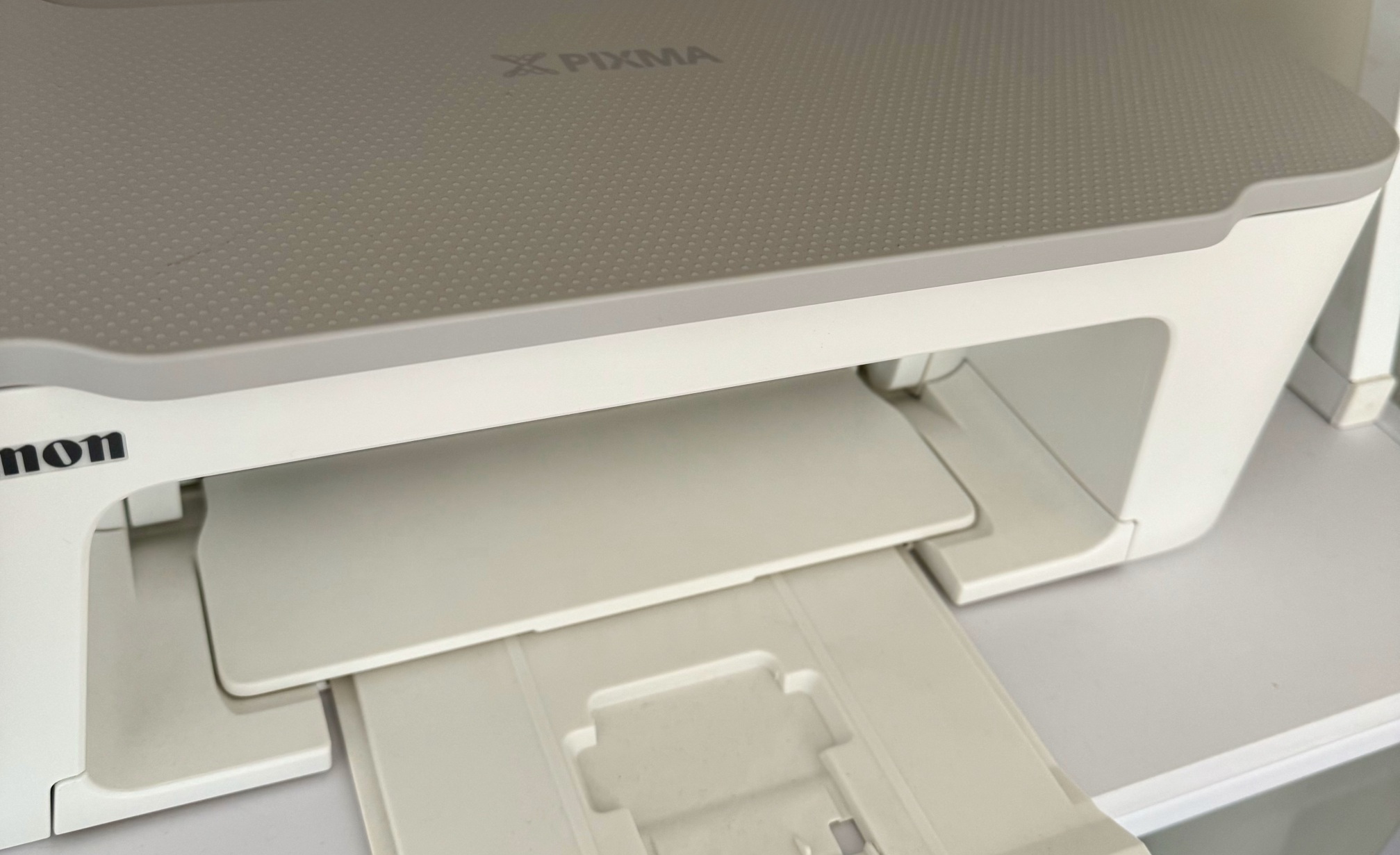
I made my first planner stickers on it, and plenty of stickers after that too. So if you're just starting out, please don't feel you need to spend a lot. A budget inkjet is a lovely way to begin while you learn.
Why a budget inkjet works well when you're starting out:
- It's affordable, so you can start making stickers without a big investment
- It prints bright, colorful stickers on inkjet sticker paper
- It's easy to find and easy to set up
The downside: ink cartridges can get expensive once you're printing lots of stickers. That's what led me to upgrade.
The printer I use now: Epson EcoTank ET-8550
As I made more and more stickers, I upgraded to the Epson EcoTank ET-8550, and it's the printer I use every day now.
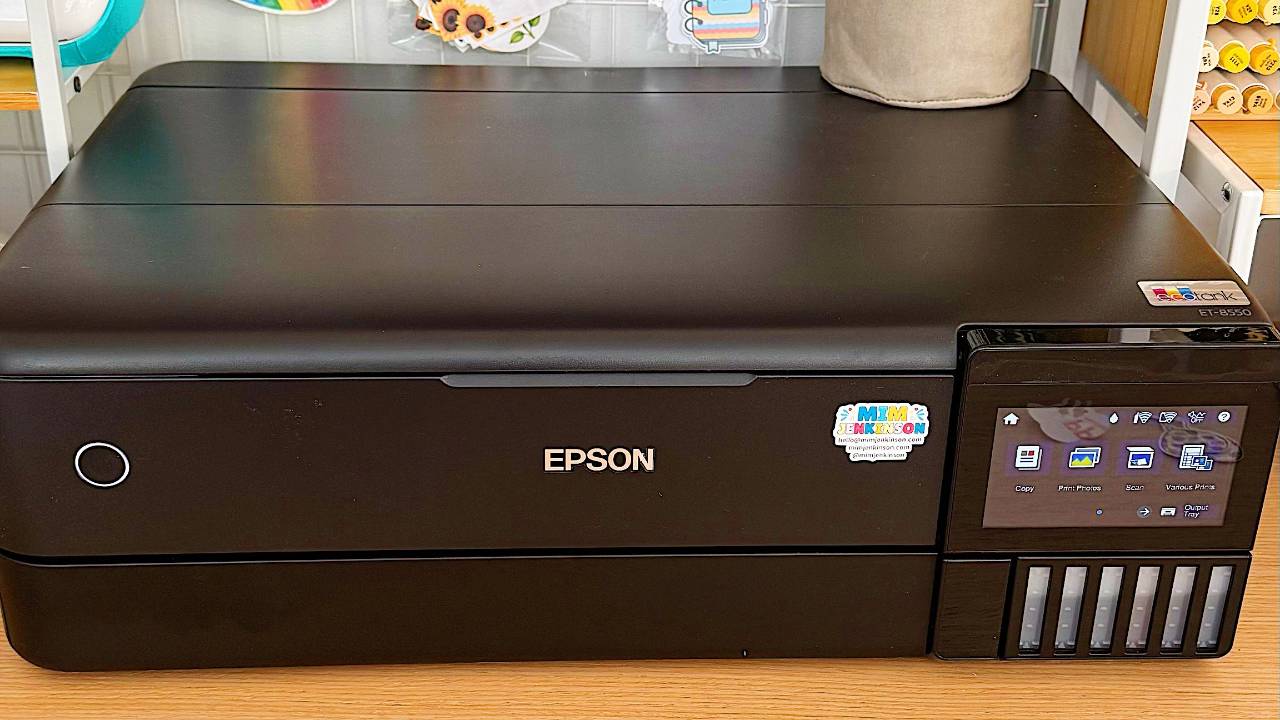
The Epson EcoTank 2800 is more affordable, as well as the Epson EcoTank 8500, and both are also commonly used by sticker makers.
Instead of cartridges, EcoTank printers have EcoTank ink tanks that you refill from bottles. It costs more to buy upfront, but the ink goes so much further, which makes a big difference when you print a lot of sticker sheets.
Why I love it for stickers:
- Beautiful color. It uses six inks, so the colors are rich and the details are crisp.
- A rear feed for thick paper. You can feed thicker sticker paper and vinyl in one sheet at a time, which helps stop jams.
- Bigger print sizes. It prints up to 13 x 19 inches, so it's great if you'd like to print larger projects too.
- Refillable ink. No more running out of a cartridge halfway through a batch of stickers!
Mim's tip: Remember, your printer is only one part of beautiful stickers. Your sticker paper, your print settings, and your cut settings all matter too. A great printer won't fix a paper that doesn't suit it.
Two more Epson EcoTank printers I'd recommend
Epson EcoTank ET-8500
The ET-8500 is very similar to my ET-8550. It has the same six-color inks and the same rear feed for thicker paper. The main difference is that it prints up to letter or A4 size, rather than the larger 13 x 19 inches.
If you only print standard sticker sheets, this is a great choice and you won't miss the bigger size.
Epson EcoTank ET-2800
The ET-2800 is a more affordable way to get into EcoTank printers. It's a simpler, everyday printer with fewer inks than the photo models, but you still get refillable ink tanks, which means cheaper printing over time.
If you'd like the savings of an EcoTank but don't want to spend as much upfront, the ET-2800 is a lovely middle ground.
Which printer should you choose?
| If you... | Try... |
|---|---|
| Are just starting out and want to keep costs low | A budget color inkjet, like a Canon Pixma |
| Want cheaper ink without spending a lot upfront | Epson EcoTank ET-2800 |
| Make lots of stickers and want rich color on letter or A4 sheets | Epson EcoTank ET-8500 |
| Make lots of stickers and want to print larger projects too | Epson EcoTank ET-8550 |
EcoTank ink: dye, pigment, and what it means for your stickers
If you spend any time in sticker-making groups, you’ll see this argument going round and round: should you use the ink your EcoTank came with, or swap it for pigment ink?
Here’s the short version.
Most home printers, EcoTanks included, come with dye-based ink. It soaks into the paper and gives you those lovely bright colors, which is exactly what you want for stickers. Pigment ink sits on top of the paper instead, and it holds up better against water and sunlight.
So pigment sounds better, doesn’t it? It’s not that simple.
- You can’t just pour pigment ink into an EcoTank and carry on. It’s a different kind of ink, and using a third-party ink in an Epson printer voids your warranty. Epson won’t support a converted printer.
- Dye ink plus a laminate sheet does the same job for most of us. The laminate is what makes your sticker water resistant, not the ink underneath it.
- Pigment ink is for a specific problem: stickers that will live outside in the sun, like car decals or bumper stickers. If that’s not what you’re making, you don’t need it.
Mim's tip: Before you buy any ink, check your exact model on Epson’s own spec page. The inks differ between the photo EcoTanks like the ET-8500 and ET-8550 and the everyday ones like the ET-2800, and the details change between model years.
So are EcoTank stickers waterproof?
Not on their own. No home printer makes a waterproof sticker straight out of the tray.
What makes a sticker waterproof is the combination: waterproof sticker paper or printable vinyl, plus a laminate layer on top. The printer prints the design. The laminate protects it. Here’s how to make waterproof stickers with Cricut.
And one thing worth knowing: waterproof and UV proof are not the same thing. A standard laminate sheet will protect your sticker from water and handling. It won’t stop the colors fading in direct sunlight over months. For anything going on a car or a window, look for a laminate that says UV resistant.
What to look for in a sticker printer
- Color inkjet (or laser with matching paper). Inkjet is the most common choice for home sticker making.
- A rear or manual feed. Sticker paper is thicker than regular paper. A rear feed or single-sheet feed helps it go through smoothly without jamming.
- The cost of ink, not just the printer. A cheap printer with expensive cartridges can cost more over time than a refillable ink tank printer.
- Good print quality settings. Look for a "best" or "high" quality setting and a choice of paper types (like matte or photo paper).
- The size you'll print. Most crafters only need letter or A4. Only go bigger if you'll really use it.
- Easy computer connection. Your printer needs to work with the computer you use for Cricut Design Space or Silhouette Studio.
- Can it print in black when a color runs out? Some printers refuse to print at all if a single tank is low. If you use the same printer for everyday documents, it’s worth checking before you buy.
New to making stickers at home?
Grab my free Sticker-Making Starter Guide and get set up the easy way, from choosing your supplies to cutting your first sheet.
Get the free Starter Guide →My printer settings tips for better stickers
- Choose the highest quality setting. It takes a little longer, but your colors and details will look so much better.
- Pick the right paper type in your printer settings. Choose the option closest to your sticker paper, such as matte or photo paper. This tells your printer how much ink to use.
- Feed thick paper one sheet at a time. Use the rear feed or manual feed if your printer has one.
- Let the ink dry before cutting. Give your sheet a few minutes so it doesn't smudge on the cutting mat.
- Print a test sheet first. Before you print a big batch, print one sheet and check the colors and the cut.
- Laminate stickers that need to last. If your stickers will be handled a lot or get wet, a laminate layer protects the ink. Here's how to make waterproof stickers with Cricut.
Common printer problems (and how to fix them)
My sticker paper keeps jamming.
Sticker paper is thick, so feed one sheet at a time through the rear or manual feed if you have one. Set the paper type to a thicker option, such as photo paper, and gently clean the rollers if jams keep happening.
My colors look dull.
Choose the highest quality setting and the closest paper type. Glossy sticker paper usually looks brighter than matte. Check your ink levels and run a print head check from your printer settings. If you’re on an EcoTank and everything still looks dull or oddly blue, try switching the color mode in your printer driver from Vivid to Adobe RGB. I haven’t needed it on my 8550, but it’s fixed it for some other ET-8500 owners.
My stickers are smudged or blurry.
Let the ink dry before you cut, and check that you're using inkjet paper with an inkjet printer. Here's more on how to fix smudges, blurs, and misalignment.
The ink rubs off my stickers.
Inkjet ink on uncoated paper can rub off, especially on stickers you handle a lot. Add a laminate layer to protect the ink.
My stickers print fine but don't cut properly.
That's usually a cut setting or calibration issue, not your printer. These easy sticker ideas for testing your machine settings will help.
My printer clogs if I don’t use it for a while.
This is the honest downside of any inkjet, EcoTank or not. The ink dries in the print head when it sits unused. Print something small in color once a week, even a test page, and run your printer’s head cleaning cycle if you notice gaps or banding. A printer that gets used regularly rarely clogs.
What crafters say about making stickers at home
"Before I saw the sign-up for this bootcamp, I had no idea you could do stickers from a printer then cut them."
Lisa, Cricut Sticker Bootcamp student
"The ease of just using my computer, printer and paper really simplifies my life!"
Rhonda, Cricut Sticker Bootcamp student
FAQs
What is the best printer for making stickers at home?
I use the Epson EcoTank Photo ET-8550. The ET-8500 and ET-2800 are also great choices. If you're just starting out, a budget color inkjet like a Canon Pixma works well too.
Do I need a special printer to make stickers?
No. A regular home color inkjet or laser printer works with print then cut on a Cricut or Silhouette. Just choose sticker paper made for your type of printer.
Is inkjet or laser better for stickers?
Both can work. Inkjet is the most common choice for home sticker making, and most home sticker paper is made for inkjet printers.
Is an EcoTank printer worth it for stickers?
If you print a lot of stickers, it can be. EcoTank printers cost more upfront, but refillable ink is much cheaper to run than cartridges over time.
Can I make stickers with a cheap printer?
Yes! I started with a Canon Pixma that cost under $100. A budget inkjet is a great way to start while you learn. You can always upgrade later. Here's more on making stickers on a budget.
Why does my printer jam with sticker paper?
Sticker paper is thicker than regular paper. Feed it one sheet at a time through the rear or manual feed, and choose a thicker paper type in your print settings.
Can I use a printer and cutting machine in one?
Yes, machines like the Cricut StickerPix print and cut in one go, but they have limits. Here's my honest Cricut StickerPix review.
Do I need a sublimation printer for stickers?
No, and this one catches a lot of people out. Sublimation is for printing onto fabric and coated blanks, not onto sticker paper. If you want to make stickers at home, you want a regular color inkjet and print then cut. You don’t need to convert anything.
Make beautiful stickers with the printer you have
Whether you're printing on a budget inkjet or a shiny new EcoTank, the real magic happens when you know how to design, print, and cut your stickers with confidence.
That's exactly what we do inside Secret Sticker Society. When you join, you'll get:
- 100+ step-by-step sticker-making tutorials in Cricut, Silhouette, and Canva
- A brand-new sticker project every month, with seasonal themes to keep you inspired
- New editable templates every month, so you're never starting from a blank screen
- Printable written instructions to keep by your craft table
- A kind, supportive community to ask questions about printers, paper, and settings
Get beautiful stickers from your printer, every time
Join Secret Sticker Society for step-by-step tutorials, monthly projects, new templates, and friendly support.
Join Secret Sticker Society →I hope this helps you find the best printer for making stickers!
JOIN THE COMMUNITY:
Learn to make stickers from scratch that you're proud to use a share!